
Zewify All products

A menu bar app for Mac

See what’s listening on your Mac’s ports.

PortGlimpse lists every server listening on your Mac, with the command that started it and the project folder it runs in. Stop one in two clicks, always after it asks.

curl -fsSL https://zewify.com/portglimpse/install.sh | sh
Paste it into Terminal. Run it again to update. Needs macOS 14 or later.

Free, with its source on GitHub.

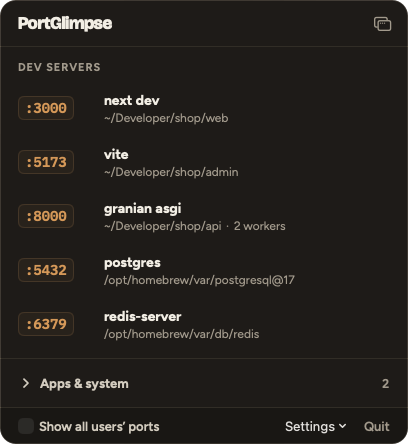
PortGlimpse’s panel. Under Dev servers: next dev on :3000 in ~/Developer/shop/web, vite on :5173 in ~/Developer/shop/admin, granian asgi on :8000 in ~/Developer/shop/api with 2 workers, postgres on :5432 and redis-server on :6379. Apps & system is collapsed, with 2 more.

The panel

Every server, by project

Click the menu bar icon and PortGlimpse shows what is listening right now, and keeps the list up to date while it is open. The number beside the icon counts your dev servers.

  • Your own servers come first, each with its command, such as next dev or vite, and the folder it was started in
  • Ports held by apps and by macOS itself wait, collapsed, under Apps & system
  • A server’s worker processes fold into its row, so granian, gunicorn or nginx with workers is one row
  • Right-click a row to always show a program as a dev server, or always tuck it away
  • Turn on Show all users’ ports to see ports held by root or other accounts, view only
The same panel: five dev servers, each with its port, command and project folder, and Apps & system collapsed below them.

Stopping a server

Two clicks, and it always asks

Hover a row and click Kill, and the row asks first: “Kill next dev on :3000?”. PortGlimpse asks the server to stop and gives it 3 seconds. If it is still running after that, it offers Force kill, and asks again. When a server has workers, the question names them and they stop with it.

Processes that belong to other users, root included, can never be stopped from PortGlimpse.

Pop-out window

A window that stays on top

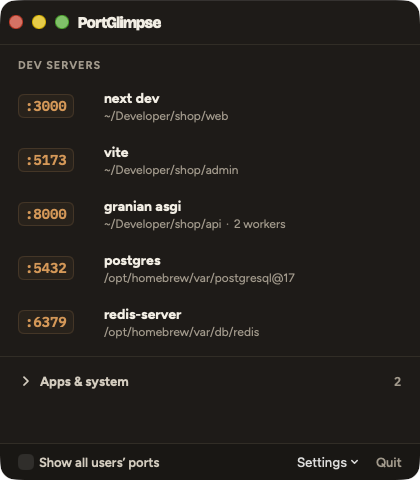
The button in the panel’s header opens the same list in its own window, which stays above your other apps, on every desktop and over full-screen apps.

  • Drag it by its header and resize it; it remembers where you left it
  • Narrower than 360 points, the rows go compact: port and command, with the folder in a tooltip
  • It refreshes every second while it is open, and closes with ⌘W
PortGlimpse’s pop-out window, with the red, yellow and green window buttons in its dark header above the same five dev servers.

Resource use

Light on your Mac

With the panel closed, PortGlimpse wakes every 10 seconds only to update the count in the menu bar. Open, it looks once a second, and each look takes about a millisecond of CPU.

Measured on an Apple M4 Mac mini with macOS 26.5 and 9 servers listening
StateCPUMemory
Panel and window closed0.05%16 MB
Panel open0.5%about 26 MB

CPU is the share of one core. Measured on an Apple M4 Mac mini with macOS 26.5 and 9 servers listening; the method is in the README on GitHub.

Install

Install, update, uninstall

PortGlimpse installs with one command in Terminal, and never asks for your password.

curl -fsSL https://zewify.com/portglimpse/install.sh | sh
Paste it into Terminal. Run it again to update. Needs macOS 14 or later.

Where it goes

Into your Applications folder, or into the Applications folder in your home folder when your account cannot write to the main one. It opens in the menu bar straight away, and starts again when you log in unless you turn that off in Settings.

PortGlimpse is installed with this command rather than a download link. Its source is published on GitHub, so you can read exactly what it does.

Updating and uninstalling

Run the same command again to update. PortGlimpse checks for a new release once a day and says so at the bottom of its panel.

To uninstall, turn off Settings → Launch at login, quit PortGlimpse, then delete the app, the folder ~/Library/Application Support/PortGlimpse/ and the file ~/Library/Preferences/com.zewify.portglimpse.plist.

Privacy

What it reads stays on your Mac

  • Read from macOS, on your MacThe list of listening ports and each process’s command and folder, only to show them in the panel. None of it is stored or sent.
  • One optional request a dayA check for a newer release at api.github.com, which you can turn off in Settings. Nothing about your processes goes with it.
  • No account, no trackingNo sign-in, no analytics and no advertising of any kind.

Know what’s on your ports

PortGlimpse is free, with its source on GitHub, for macOS 14 or later.

curl -fsSL https://zewify.com/portglimpse/install.sh | sh
Paste it into Terminal. Run it again to update. Needs macOS 14 or later.